Before you upload
Payout setup required
Before you can upload any music, you must complete your payout setup. This ensures you can receive earnings when listeners purchase your releases. Head to Payout Settings to connect your payment account. Once your account is verified, the upload page unlocks.File requirements
Audio format
WAVjunkie accepts WAV files only with the following specifications:
Why WAV only? WAV files provide the highest audio quality for your listeners. When buyers purchase your music, they receive the same high-fidelity files you upload.
File size
- No specific size limit per file
- Upload times may vary for larger files
Cover art
Release types
Single
- 1 track
- Perfect for standalone songs
- Quick to upload and publish
EP (Extended Play)
- 2–5 tracks
- Great for themed collections
- Shorter than a full album
Album
- 5–20 tracks
- Full-length projects
- Maximum impact for dedicated fans
The upload wizard
WAVjunkie uses a 5-step wizard to guide you through the upload process.Auto-save is on by default. Your progress saves automatically as you move between steps and you’ll see a “Progress auto-saved” confirmation. If you accidentally close the tab, refresh, or lose connectivity, your metadata is preserved.
Step 1: Release type
Choose your release format: Single, EP, or Album. This determines how many tracks you can upload and how your release is categorized.Step 2: Upload tracks
Uploading your WAV files
- Click “Upload WAV File” or drag and drop
- Wait for the file to upload and validate
- Metadata (title, duration) is automatically extracted
- Repeat for additional tracks (EPs and Albums)
Cover art upload
- Click “Upload Cover Art” or drag and drop
- Preview your artwork
- Ensure it meets the minimum size requirements (1400×1400px)
- Use high-contrast, eye-catching designs
- Include your artist name and release title
- Avoid excessive text
- Ensure it looks good as a thumbnail
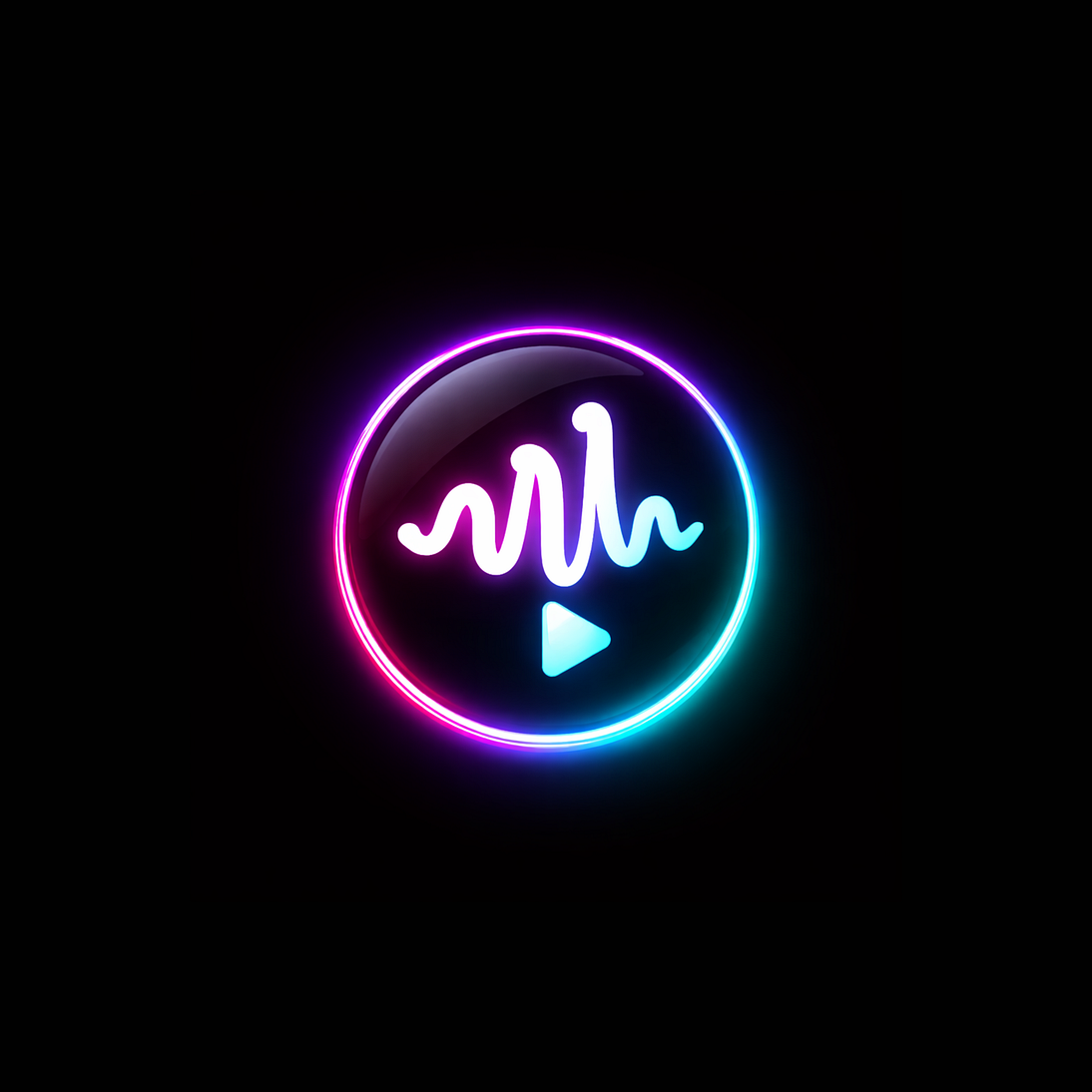
Cover art is optional but recommended. If no cover art is provided, WAVjunkie will use a default cover (shown below).
Track order
For EPs and Albums, you can reorder tracks by dragging them into your preferred sequence.Automatic metadata extraction
WAVjunkie automatically extracts:- Track title — from the filename or WAV metadata
- Duration — calculated from the audio data
Step 3: Release details
Genre selection
Choose from over 100 sub-genres organized into 16 categories: Pop, Rock, Hip-Hop/Rap, Electronic/Dance, R&B/Soul, Country, Jazz, Classical, and more.Step 4: Credits & rights
This step captures important information about your release’s credits and legal status.Credits
Lyrics
All artists can add optional lyrics in Step 4, separately for each track. Expand the editor for longer text and contract it when finished. Save line breaks as you want listeners to see them. Lyrics are shown where provided on the release page and in the full-screen Now Playing sheet, alongside credits and artist information.Tags
Add optional tags to help listeners discover your music:- Mood tags — Energetic, Chill, Dark, Uplifting, Melancholic, etc.
- Format tags — Instrumental, Vocal, Acoustic, Live, Remix, etc.
Copyright / Performing Rights Organisation (PRO)
If you are registered with a PRO, enter it here. Optional but recommended for royalty tracking.- BMI – Broadcast Music, Inc.
- ASCAP – American Society of Composers, Authors and Publishers
- Other – e.g. PRS for Music, SACEM, GEMA
ISRC code
If you have an International Standard Recording Code (ISRC), enter it here. Optional but helpful for tracking and royalties.Legal declarations
Self-published status- ✅ Self-published (you own all rights)
- ❌ Publisher represented (enter publisher name)
- ✅ No samples used
- ❌ Contains samples (authorization required)
- ✅ Original composition
- ❌ Cover version (mechanical license required)
Step 5: Publishing
Visibility options
Publish immediately — Your release goes live as soon as you submit. Schedule for later — Choose a specific date and time. Great for coordinated marketing campaigns, midnight releases, and building anticipation. Save as draft — Keep working on your release without publishing. Return anytime to continue editing.Auto-save and session recovery
WAVjunkie’s upload wizard is built around the assumption that something will go wrong at some point — a tab closes, the browser crashes, the laptop sleeps. The wizard is designed so that nothing you’ve entered is lost.How auto-save works
- Every time you move between wizard steps, your progress is saved automatically.
- A small “Progress auto-saved” confirmation appears so you know it’s been captured.
- The save covers all metadata: title, description, genre, credits, tags, PRO/ISRC, legal declarations, scheduled date, etc.
- WAV file uploads and cover art uploads complete to storage as soon as they finish — they don’t depend on you clicking “Save” or reaching Step 5.
Session recovery
If your session is interrupted and you return to the upload page, you’ll see a recovery banner at the top with two options:- Resume — Picks up exactly where you left off in the wizard, with all metadata and any uploaded files restored.
- Save as Draft to My Releases — Saves the release as a draft visible from My Releases, so you can come back to it later from anywhere.
Drafts in My Releases
Drafts created via the recovery flow appear in My Releases with a “Draft” badge alongside your published and scheduled releases. You can:- Open and continue editing them
- Re-upload missing WAV files
- Publish or schedule when ready
- Delete the draft if you no longer need it
Editing a scheduled release date
If your release is scheduled for a future date, you can change that date at any time from My Releases → Edit:- Open the release and scroll to the Scheduled Release Date section.
- Pick a new date and time, then click Save Changes.
- A confirmation dialog shows the previous and new dates side by side.
- Once you confirm, you’ll receive an automated email confirming the change.
Monthly upload limits
Upload limits depend on your artist plan:
All limits reset on the 1st of each month. Your current usage and remaining uploads are displayed in the upload wizard.
Community rewards: From time to time, WAVjunkie may grant bonus uploads as a thank-you for contributions like bug reports or community support. These temporary extras are added to your monthly limit and displayed automatically on the upload page.
After publishing
Managing your releases
From My Releases in your dashboard, you can:- Edit — Update metadata, description, tags
- Delete — Remove the release permanently
- View Analytics — See plays, downloads, earnings
Editing a published release
You can update:- ✅ Title and description
- ✅ Price
- ✅ Tags and genre
- ✅ Cover art
- ✅ Visibility settings
- ❌ Audio files (delete and re-upload instead)
- ❌ Release type
Deleting a release
When you delete a release:- It’s permanently removed from the platform
- Existing purchasers retain their download access
- Your earnings from past sales are unaffected
Embed your release
- Open My Releases and find a published release.
- Open its ⋯ menu and choose Copy embed code. Drafts do not offer this action.
- Alternatively, open the public release page and choose Copy embed code in its Share section.
- Paste the copied code into an HTML/embed block on your website, blog or press page. The destination must accept iframe code; ordinary text or link fields will not render the player.
Social graphics
Download ready-to-post images for any published release, new or existing:- Instagram post (4:5, 1080 × 1350)
- Instagram story (9:16, 1080 × 1920)
- Facebook post (1:1, 1080 × 1080)
Troubleshooting
”Invalid file format” error
Cause: Your file is not a valid 16-bit or 24-bit WAV file. Solution:- Open your audio in a DAW (Ableton, FL Studio, Logic, etc.)
- Export as WAV with 16-bit or 24-bit depth
- Re-upload the new file
Upload stuck or failed
Possible causes:- Slow internet connection
- File too large for your connection
- Browser timeout
- Refresh the page and try again — your metadata is auto-saved
- Try a different browser
- Check your internet connection
- Try a smaller file first to test
Cover art too small
Cause: Image dimensions are below 1400×1400 pixels. Solution: Use a higher-resolution source image. Don’t stretch small images — they’ll look blurry.Can’t see my published release
Check these settings:- Visibility — Is it set to visible?
- Draft status — Is it still marked as draft?
- Schedule — Is it scheduled for a future date?
- Cover version / sample — Is it being held for licence review? See Content Guidelines.
Best practices
Audio quality
- ✅ Export at the highest quality your master allows
- ✅ Use 24-bit for maximum fidelity
- ✅ Properly level and master your tracks
- ❌ Don’t over-compress or over-limit
Metadata accuracy
- ✅ Use a consistent artist/display name
- ✅ Include all relevant credits
- ✅ Choose accurate genres and tags
- ✅ Write engaging descriptions
Cover art
- ✅ Invest in professional or high-quality artwork
- ✅ Ensure text is readable at small sizes
- ✅ Use consistent branding across releases
- ❌ Don’t use copyrighted images without permission
Pricing
Consider your audience, production quality, and comparable releases when pricing.
WAVjunkie has a minimum price of $1.
Legal requirements summary
Quick reference checklist
Before hitting publish, verify:- WAV files are 16-bit or 24-bit
- Cover art is at least 1400×1400px
- All credits are accurate
- Genre and tags are relevant
- Price is set correctly
- Legal declarations are truthful
- Required licence PDFs are uploaded (if applicable)
- Description is compelling
- Visibility/schedule is correct
Need help?
If you encounter issues during upload:- Email: admin@wavjunkie.com
- Subject: Upload Support